







On today’s internet, good content alone is no longer enough to appear in search results. Search engines read pages as text, but they do not always understand what that text actually represents. This is where schema markup comes in: a smart way to help search engines understand your website’s content more accurately.
Schema is a simple piece of code added to your pages to define the type of content clearly, such as a product with a price and rating, an article with a date and author, or questions with direct answers. Schema does not change your page content, but it can improve how the page appears in search results and increase your chances of attracting visitors. In this article, we explain what schema markup is and how to use it correctly and easily.
What Is Schema Markup in SEO?
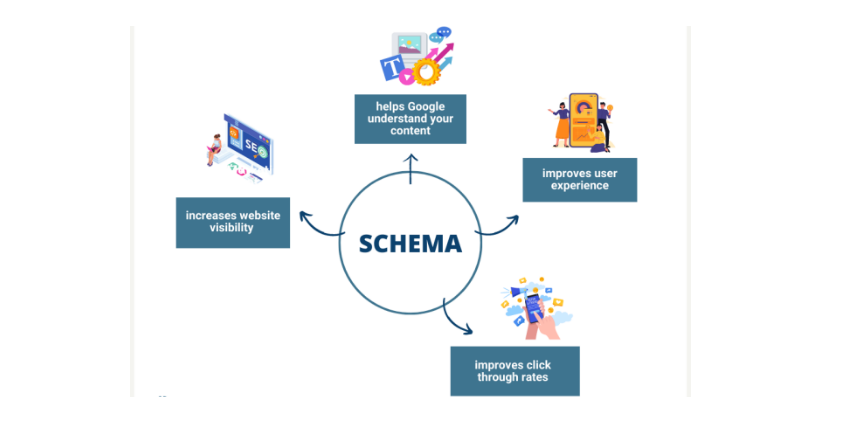
Schema markup is one of the on-page SEO techniques. It is a structured way to help search engines understand your website’s content more clearly and accurately. You add JSON-LD code to your pages that tells Google what type of content the page contains, whether an article, a product, a service, or frequently asked questions, along with important details such as price, rating, publication date, and author name.
This code does not change how the page looks to visitors, but it can improve how it is displayed in search results, where pages may appear with richer features such as ratings, prices, or rich snippets. Because it is based on the schema.org vocabulary agreed on by the major search engines, schema has become a core tool for improving content understanding, strengthening visibility, and attracting visitors naturally and professionally.
Why Is Schema Important for SEO?
Search engines do not evaluate websites only on content quality, but also on how well they can understand that content. Without schema, search engines rely on text analysis and inference to understand your pages, which can mean missing important details. Schema solves this by presenting your content in a structured, clear language that states the page type and its key information directly.
With schema, it becomes easier for search engines to interpret and index your content accurately, which helps them display it better in search results. This precise understanding does not only mean clearer visibility. It also gives your website a stronger chance to compete and earn a higher click-through rate, even if the page’s ranking does not change.
How schema affects your website
Using schema directly affects how your website performs in search results. Its main benefits include:
- Richer search appearances with clear additional information.
- A higher click-through rate (CTR) thanks to clearer, more attractive results.
- Helping search engines understand the context and real meaning of your content.
- Building user trust in your website from the first impression.
- A better user experience before the visitor even enters the page.
- Supporting modern SEO strategies built on structured data.
What Are the Types of Schema, and When Should You Use Each?

Schema is not one template added to every page. It is a set of different types, each serving a specific purpose depending on the content. Choosing the right type helps search engines understand the page more accurately and makes its appearance in search results clearer and more organized, which directly affects user experience and engagement with your website.
The main schema types and their uses:
- Article schema (Article / BlogPosting):
Article is the core schema for editorial content, with sub-types depending on the content, such as BlogPosting for blog posts and NewsArticle for news. Using the right type helps search engines understand whether the content is a blog post, news, or a general article, and highlights details such as the headline, publication date, and author. - Product schema (Product):
Designed for product pages in online stores. It displays key information such as price, availability, and ratings, which helps users make a buying decision from the very first impression. - Review schema (Review / AggregateRating):
Used when showing customer ratings or reviews of products and services. Ratings usually appear as stars in search results, which builds trust and catches attention quickly. Note that Google does not show review stars for reviews a business publishes about itself. - Local business schema (LocalBusiness):
Suitable for companies and businesses with a physical location. It provides information such as address, opening hours, and contact details, and helps users reach the business easily. - Recipe schema (Recipe):
Used on cooking and recipe websites to show details such as preparation time, ingredients, and nutrition information, making the content clearer and more attractive in search results. - Event schema (Event):
Suitable for announcing events such as conferences or shows, displaying the event’s date, location, and time directly in search results. - FAQ schema (FAQPage):
Used on pages with questions and answers. It still helps search engines understand your Q&A content, but since 2023 Google shows FAQ rich results only for a limited set of well-known, authoritative government and health websites, so do not count on it for extra space in search results.
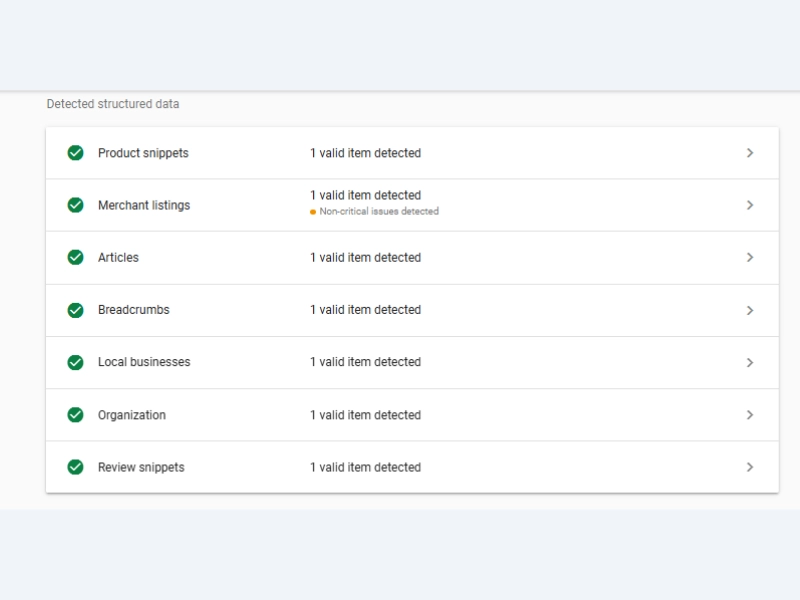
Testing schema with Google’s Rich Results Test
How to Add Schema to Your Website in Simple Steps
Schema may look like a complex technical element at first, but it is easier than you think. You do not need deep programming experience or complex code written from scratch. Adding schema is about organizing information already on your website and presenting it to search engines more clearly. Whether you run a WordPress website or a custom-built one, you can apply schema in simple steps that give your pages clearer understanding and a better chance of ranking on Google’s first page.
The basic idea is to choose the right schema type for each page, then enter accurate data that reflects its real content, and test it before relying on it. The clearer and more organized the data, the stronger and more effective the schema.
The main ways to add schema to your website
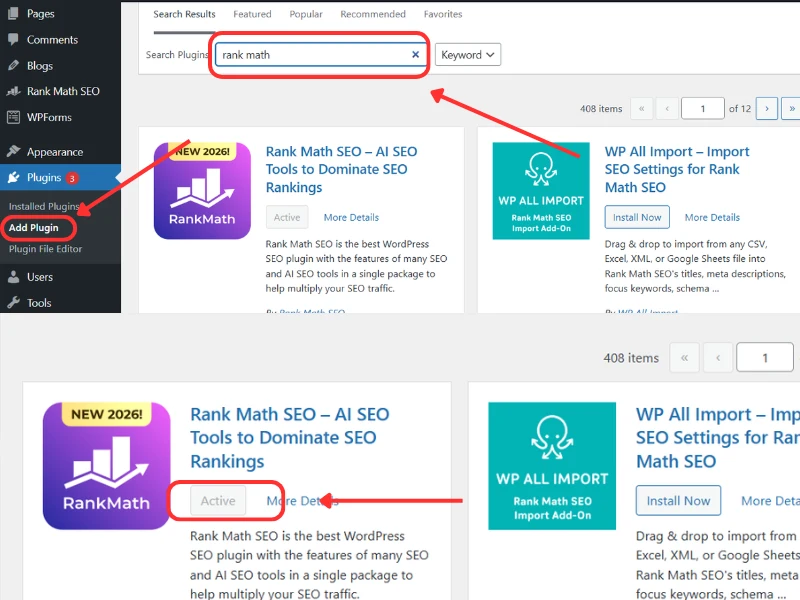
Installing the Rank Math plugin
Using WordPress plugins (the easiest way):
If you use WordPress, this is the fastest and most common method. Schema plugins provide a simple interface where you choose the content type (article, product, recipe, video, and so on) and enter the required data without touching code. This method suits small and medium-sized websites and saves a lot of time and effort.
Adding schema manually with JSON-LD:
This method adds JSON-LD code directly to the page or template. It is often used on custom websites or when you need full control over structured data. It offers more flexibility but requires precise implementation to avoid conflicts or errors.
How to Set Up Schema with Rank Math (Free and Pro)
Rank Math is one of the best-known WordPress SEO plugins. It integrates deeply with the block editor and lets you add schema to pages and posts easily from inside the dashboard. Before you start, it helps to know what schema looks like in search results and how rich results appear when it is set up correctly, because that is the end goal of the whole process.
Step 1: Enable schema on the website
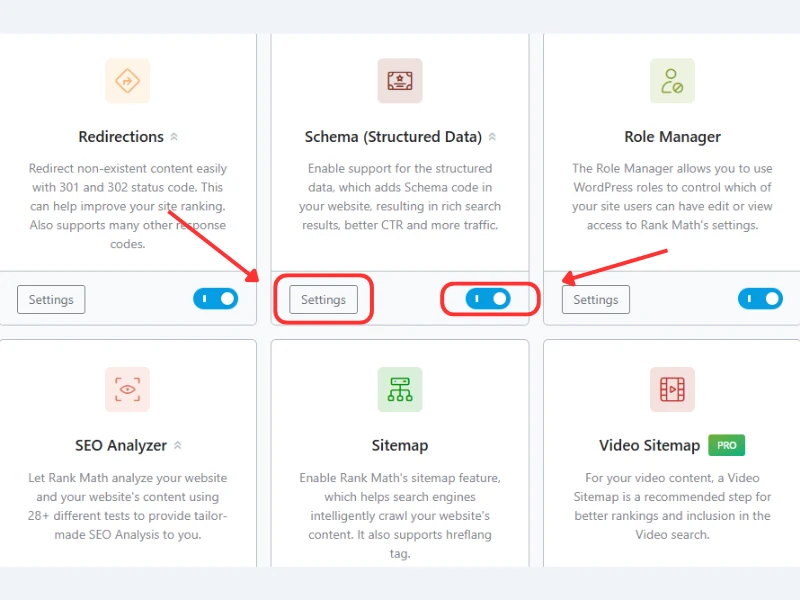
Enabling schema in Rank Math
Log in to your WordPress dashboard, then open Rank Math from the sidebar and click Dashboard.
On the settings page, you will find a section called Modules. Scroll down to Schema (Structured Data) and switch it on until the toggle turns blue.
With this step, schema is enabled on your website and you are ready to customize it.
Step 2: Set the default schema type
If your website publishes one consistent type of content, such as articles only or products only, it is best to set a default schema type that applies automatically to all pages and posts.
You can always change it later or customize schema for individual pages when needed.
To set a default schema, follow these steps: from the main WordPress dashboard, click Rank Math, then go to Titles & Meta.
In the settings: click Posts, scroll down to Schema Type, and choose the schema type you want as the default for posts. Then scroll to the Pages section and set the default schema type for pages the same way.
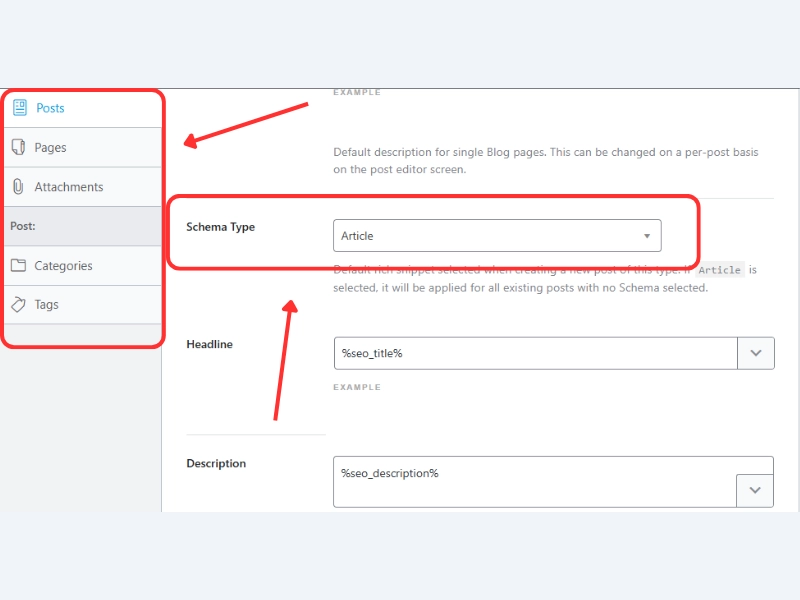
Choosing a schema type in Rank Math
You will find many supported schema types in the list, including the ones we covered earlier in this article. Just scroll and choose the type that fits your content. For example, you could choose Book schema if your website specializes in book reviews.
We covered a related topic in more detail in our article on website indexing in search engines.
If you do not want any default schema type, choose None for posts or pages. With these steps, you have laid the right foundation for managing schema with Rank Math, and you can customize it later for each piece of content without technical complexity.
Step 3: Add custom schema to each page or post
If you want full control, you can add custom schema to individual pages or posts, separate from the default schema applied automatically across the website. To do this:
- Go to your WordPress dashboard.
- Open Posts or Pages (in this example, we choose Pages).
- Click Add New.
After entering the page title and content, click the Rank Math icon at the top of the editor, then open the Schema tab.
You will notice that the default schema type we set earlier (Book) has been added automatically. To remove it, click the trash icon next to it and confirm by clicking Yes.
Then click Schema Generator to choose a new custom schema type for this page only.
How to Set Up and Customize Schema Templates in Rank Math, Step by Step
Structured data is the language that translates your content into signals search engines understand. It does not just tell Google what the page offers. It defines precisely what it is: an article, a product, a recipe, an event, or a review.
With Rank Math, you can manage schema at three flexible levels, from the fastest to the most advanced, depending on how much control you need.
Level 1: Use ready-made schema templates
This option is ideal for a quick start without complexity.
Steps:
- Open the post editor.
- Click the Rank Math icon.
- Go to Schema, then Schema Generator.
- Choose the right schema type (Article, Product, Event, and so on), then click Use.
What happens? The default template is applied automatically using the post’s data (title, description, author, date), in line with search engine requirements.
Level 2: Customize ready-made templates
When you want more precise results without starting from scratch.
1) Use variables
Replace fixed text with dynamic variables such as:
- %title% to pull in the post title automatically
- %excerpt% to use the short description
The result is one smart template that adapts to every post without manual edits.
2) The advanced editor (Pro version)
Control fields in detail:
- Add a brand to product schema
- Set the prep time in recipe schema
- Adjust values manually to match the content
3) Display conditions
Make the template apply only where it should:
- Enable it for the “News” category
- Disable it on “Contact us” or other static pages
Level 3: Create fully custom schema
This is where you move into competitive advantage.
a) A global template
Path: Dashboard > Rank Math > Schema Templates > Add New
Design your own schema, set the display conditions (for example, all posts in the “Phone reviews” category), and save the template.
The result: the schema is applied automatically to any new content that matches the conditions, saving time and improving consistency and performance.
b) Import schema from another page
- Open Schema Generator and choose Import.
- Enter the URL of the page (for example, a competitor’s page).
- Rank Math analyzes the schema and converts it into a template on your site.
Edit the names, URLs, and IDs so they match your website and your own content.
Rank Math Free vs. Pro for Schema

The difference between Rank Math free and Pro
Before going deeper into the options inside Schema Generator, it is worth understanding the difference between Rank Math’s free and paid versions in terms of schema, because some advanced features are not available in the free version.
The paid version of Rank Math offers several important extra features, including:
- Global schema templates to apply the same schema to multiple pages automatically
- Importing schema from other websites or from ready-made code
- Custom schema that you build manually to fit your needs
- Code validation directly inside the plugin
- Multiple schema types on a single page or post
These features give you more flexibility and finer control, especially on large websites, online stores, and specialized websites.
Now that the difference between the two versions is clear, you can work through the options in Schema Generator step by step and use each one correctly for the best results in search.
Simple checks to apply schema correctly
- Identify the content type of each page before adding any schema.
- Choose the right schema type and avoid conflicting types on the same page.
- Enter real data that matches the content visible to users on the page.
- Test the schema with Google’s tools before publishing.
- Monitor performance in Google Search Console after implementation.
Common Schema Mistakes and How to Avoid Them
Although schema is an effective way to improve your visibility in search results, applying it inaccurately can make its effect weak or unnoticeable. Most mistakes are not complex technical issues but simple errors in choice or implementation, and you can easily avoid them by paying attention to these details:
- Using a schema type that does not reflect the page’s real content
Sometimes article schema is applied to a product page or vice versa, which confuses search engines and reduces the markup’s effectiveness. - Entering incomplete or inaccurate data
Leaving important fields empty or adding information users cannot see on the page can prevent rich results from appearing. - Using conflicting schema types on the same page
Combining several types without proper structure can lead search engines to ignore the markup. - Not testing schema before publishing
Skipping testing with SEO tools can hide small errors that stop the code from being read correctly. - Treating schema as a standalone ranking fix
Schema improves visibility and user experience, but it works best combined with strong content and a good user experience.
In the end, schema is an important part of search engine optimization, but it is not the only factor in ranking. It helps search engines understand your content more accurately and works best as part of a complete SEO strategy that covers content, technical structure, and user experience. If you would rather have these steps handled professionally without spending your own time, explore our search engine optimization services.
If you want the full picture of SEO and the other factors that affect your rankings in the years ahead, read our article:
What Is SEO and How to Rank in 2026
to learn how to build a strong, competitive website.
Sources
- Intro to How Structured Data Markup Works، Google Search Central